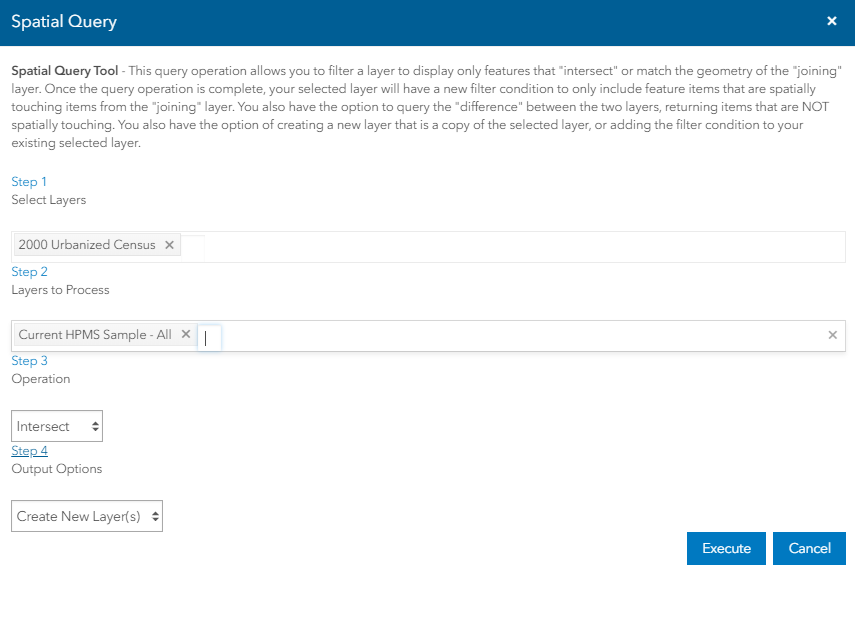
Spatial Query Tool
This query operation allows to filter a layer to display only features that "intersect" or match the geometry of the "joining" layer. Once the query operation is complete, the selected layer will have a new filter condition to only include feature items that are spatially touching items from the "joining" layer. There is another option to query the "difference" between the two layers, returning items that are NOT spatially touching. A new layer that is a copy of the selected layer can be created , or the filter condition can be added to the existing selected layer.
Spatial Query tool can be accessed from Layer tools.
Step 1: Select the primary layer from the dropdown .
Note:If you select spatial query from Layer Tool near the layer name, the current layer will be selected in Step 1.
Step 2:Select a layer to process against from the dropdown. The layer selected may be of any type, Drawing layer, Routing layer, system layer, e.t.c...
Step 3: Select Intersect as Operation type.
Step 4: Select Create New Layer to create a new layer with the new result filter on it. The original filter will not be changed.
OR
Select Update Layer instead of creating a new layer, it will apply the new filter onto the original primary layer.
Execute:Starts to initiate the Spatial Query process and adds the newly created layer with new result on to the map.
Cancel: Closes the spatial Query window without saving the changes.