 from the Maps menu. Print modal
box opens with four steps to navigate through.
from the Maps menu. Print modal
box opens with four steps to navigate through.Print Map
The Print window appears when you click the Print
Map button from the Maps menu. Print modal
box opens with four steps to navigate through.
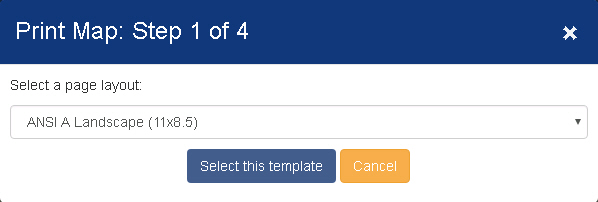
Step1:Select the print size in Step1 and click 'Select this template'. Hit cancel to close the print modal.
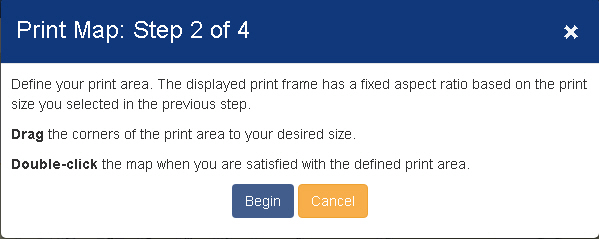
Step 2: Select the print area by hitting continue .Print extent box is drawn on the map and could be modified by dragging the corners of the print box. Print extent can be confirmed by double clicking anywhere on the screen.
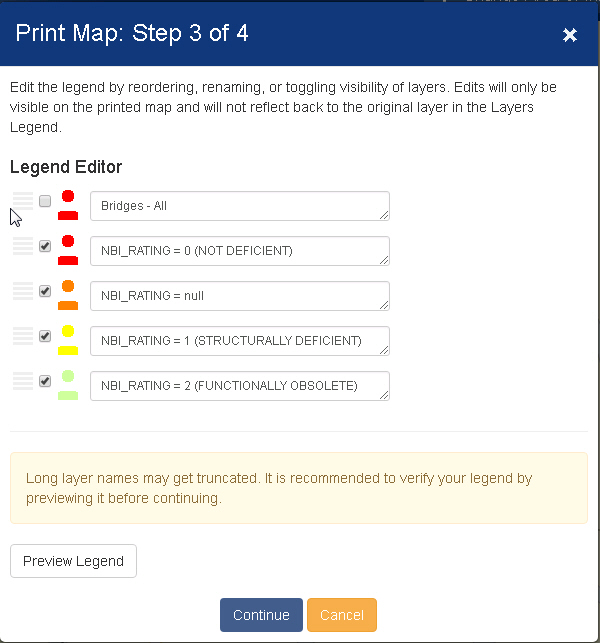
Step 3:The legend image to be printed on PDF can be edited by reordering, renaming, or toggling visibility of layers. Click Continue .
Step 4:Enter additional information (Title, Author, Copyright, Scalebar Units) and click print button.
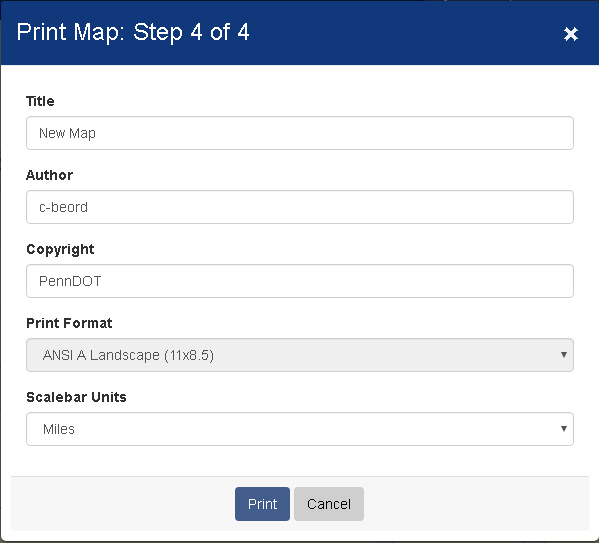
Title - Enter a title you want to appear when the map is printed.
Author Text - Enter the author you want the map credited to.
Copyright Text - Enter copyright information that will appear when the map is printed.
Scalebar Units-Select the preferred unit.
Print - Click this button to generate an Adobe Acrobat (.pdf) file that you can print or save.
Email Output-Check the box in front of receive the printed PDF to your e-mail .