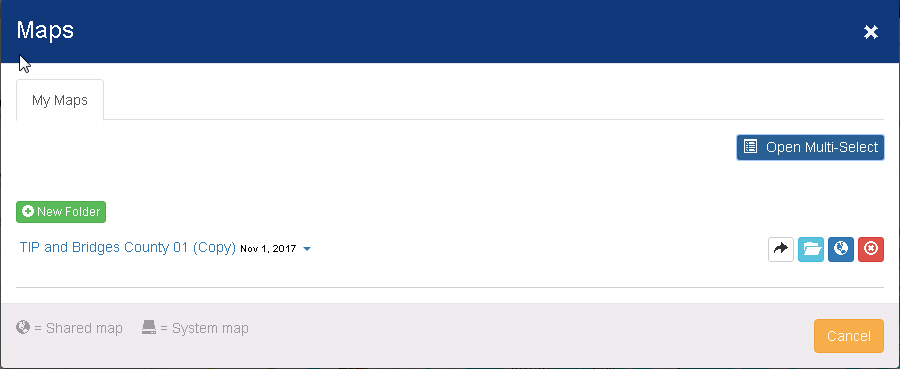
The Maps window provides controls for viewing, sharing, and deleting maps.
The My Maps tab displays a list of maps you have saved for your use. From here, you can open, share, or delete any of these maps.
My Maps - Click this tab to access the My Maps tab.
Filter Maps - Type text in this field to filter the list of maps. The list will show only maps that contain the text entered.
 (Open Map) -
Click this button to display the associated map.
(Open Map) -
Click this button to display the associated map.
New Folder - Click this button to add a folder that you can use to organize your maps. The Add Folder window appears.
 (Edit Layer)
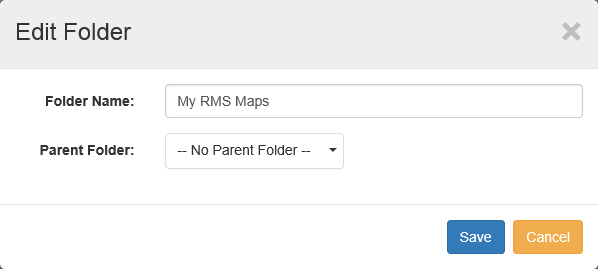
- Click this button to change the name or parent folder of the associated
folder. The Edit
Layer window appears.
(Edit Layer)
- Click this button to change the name or parent folder of the associated
folder. The Edit
Layer window appears.
 (Add Sub Folder)
- Click this button to add a new folder beneath the associated folder.
The Add Folder window
appears.
(Add Sub Folder)
- Click this button to add a new folder beneath the associated folder.
The Add Folder window
appears.
 (Move to Folder)
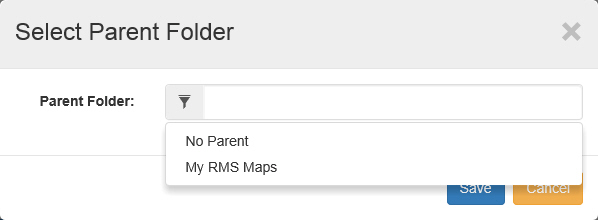
- Click this button to move the associated map to a sub folder. The Select
Parent Folder window appears.
(Move to Folder)
- Click this button to move the associated map to a sub folder. The Select
Parent Folder window appears.
(Open Map) -
Click this button to display the associated map.
 (Share Map)
- Click this button to share a link to the associated map.
(Share Map)
- Click this button to share a link to the associated map.
 (Unshare Map) - Click this button
to unshare the associated map.
(Unshare Map) - Click this button
to unshare the associated map.
 (Delete Map)
- Click this button to delete the associated map.
(Delete Map)
- Click this button to delete the associated map.