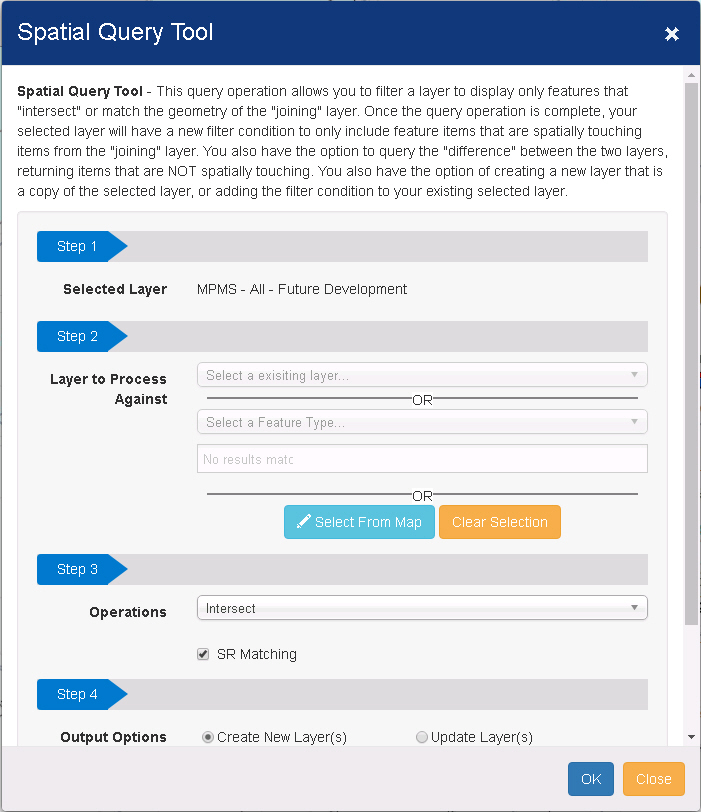
Spatial Query Tool
This query operation allows to filter a layer to display only features that "intersect" or match the geometry of the "joining" layer. Once the query operation is complete, the selected layer will have a new filter condition to only include feature items that are spatially touching items from the "joining" layer. There is another option to query the "difference" between the two layers, returning items that are NOT spatially touching. A new layer that is a copy of the selected layer can be created , or the filter condition can be added to the existing selected layer.
Spatial Query tool can be accessed from:
a) Map Tools
b) Layer tools
Step 1: Select the primary layer from the dropdown .
Note:If you select spatial query from Layer Tool near the layer name, the current layer will be selected in Step 1.
Step 2:Select a layer to process against.
There are three options to select from:
a) Choose an existing layer as a joined layer, one at a time
b) Choose a geographic filter. (County boundaries, Municipal boundary etc.). Select a Feature type from the drop down. You will get appropriate drop downs below.
c) Draw a boundary on the
map as geographic filter. Hit Select from map ->Select an area on the
map ->Will see drawing applied on the tool. 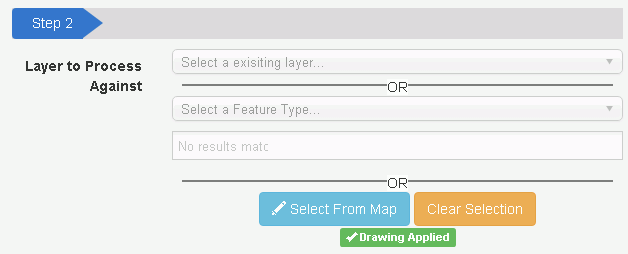
Step 3:
Select Intersect/Difference from the dropdown.
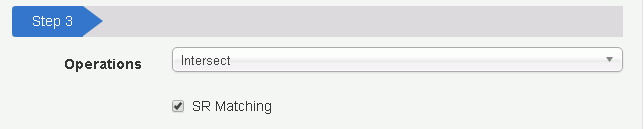
Intersect: During intersection, spatial tool will choose the features in the primary layer that are intersected within the layer/filter selected in step 2, depending on the geometry type.
Difference: It will show the features in the primary layer that are not intersected with the layer/filter selected in step 2, depends on the geometry type.
SR (Street Route) Matching: By checking the box, the tool will try to find if there is any ST_RT_NO property between the layers intersected/difference. If yes, the spatial intersect will also make sure the ST_RT_NO matches for each record in the layers .Note:You should be able to utilize the SR checkbox even if all layers you are intersecting don’t have SR available. Those layers that have SR will go the attribute pathway. The other will go the GP process (longest of the 3 pathways). When one of the layers does not have RMS value, it won't compare the SR even if it is checked.

Select one of the options below:
Create New Layer: Selecting this will create a new layer with the new result filter on it. The original filter will not be changed.
Update Layer: Instead of creating a new layer, it will apply the new filter onto the original primary layer.
Advanced Option.
Provides three options to select from :
a)Default
b)Force Spatial GP process
c)Force Oracle SDO
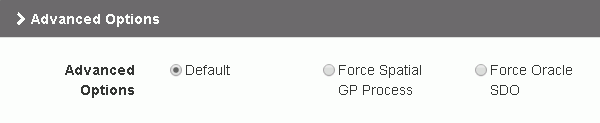
Select from one of the options:
Default: The program decides which workflow to go through by default .When both layers have RMS values, by default workflow, it is going to create an attribute join, which is not a real spatial join.
Force Spatial GP Process: This will call the new GP process and come back with result.
Note: Selecting "Force GP call" compares the SR value, when both layers have ST_RT_NO .
Force Oracle SDO: This is the old Oracle spatial call from Spatial intersect tool if the user wants to use it.
Note: It could be fast for smaller tables, but results in a slow process if the data is large.
Note: Oracle SDO is never going to run, unless user selects it.
Renew Function.
Navigate to layer Tools ->Renew Intersected Layer
Note: This is only visible to the intersected layers for the users to refresh the layer and available for spatially joined layers.
Not available for the intersected layer that has a geographic filter in step 2.