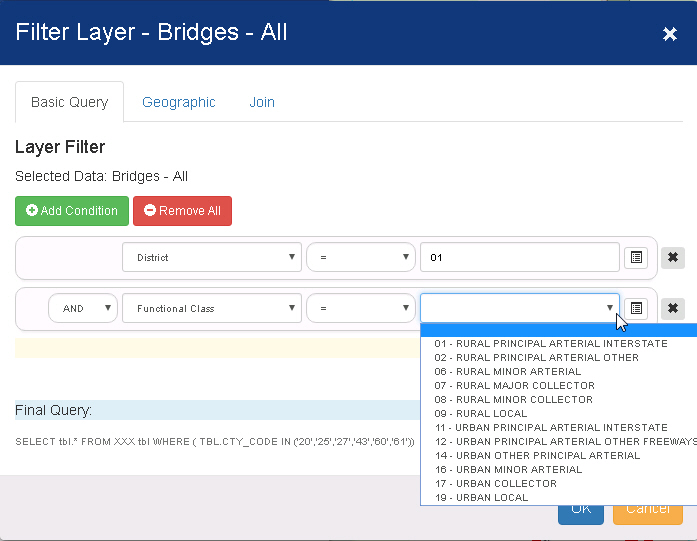
Use the Filter Layer window to narrow down a layer's features to show specific data, for example location, date range, or other characteristic.
Depending on the layer selected, the Filter Layer window can contain up to three tabs.
Add Condition - Click to add a condition. The condition may be inclusive (AND) or exclusive (OR) with regard to any previous conditions.
For each condition you need the following:
Attribute - The attribute of the layer that will be searched.
Operator
- The comparison that will be applied.
Click here for
a description of all available operators.
Value - The value that the attribute will be compared against. Values can either be drop down lists or text entry fields depending on the attribute type.
Remove All - Click to delete all conditions.
 (Remove Condition)
- Click to delete the associated condition.
(Remove Condition)
- Click to delete the associated condition.
OK - Click this button to apply the filter.
Cancel - Click this button to close the window without applying the filter.
Caution: Use Geographic filters only when the appropriate attribute is not available in the Basic Query for the selected layer.
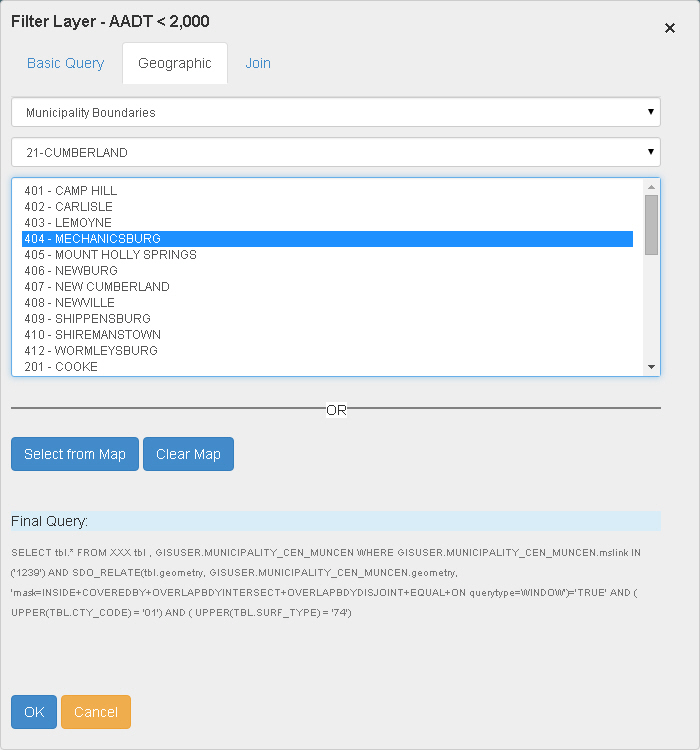
Select a Feature Type - Click this drop down list to select a geographic feature to filter by. Examples include county/municipal boundaries or PA House/Senate Districts.
Select from Map - Click to draw a polygon on the map. The filter will display only results within the polygon's boundary.
Clear Map - Click this button to remove the selection polygon from the map.
OK - Click this button to apply the filter.
Cancel - Click this button to close the window without applying the filter.
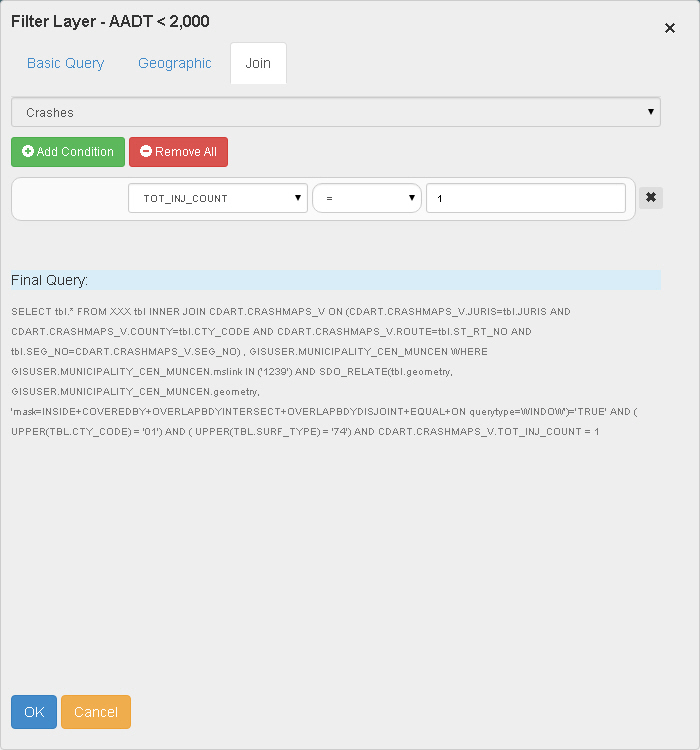
Select a Roadway Characters... - Click this drop down list to select a roadway characteristic to filter by.
Add Condition - Click to add a condition. The condition may be inclusive (AND) or exclusive (OR) with regard to any previous conditions.
For each condition you need the following:
Attribute - The attribute of the layer to be used as basis for comparison.
Operator
- The comparison that will be applied.
Click here for a
description of all available operators.
Value - The value that the attribute will be compared against. Values can either be drop down lists or text entry fields depending on the attribute type.
Remove All - Click to delete all conditions.
(Remove Condition)
- Click to delete the associated condition.
OK - Click this button to apply the filter.
Cancel - Click this button to close the window without applying the filter.