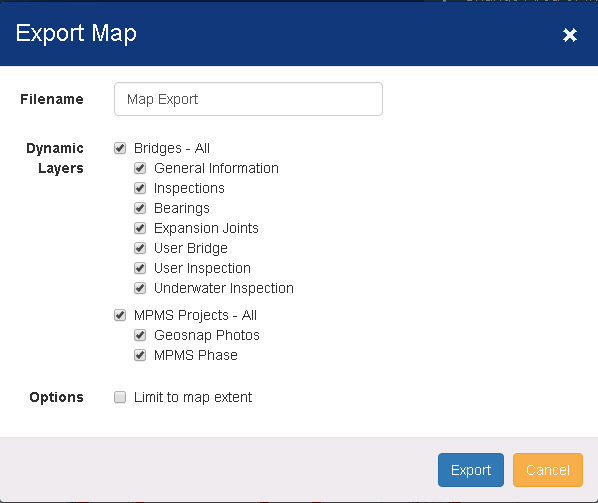
The Export map window contains controls used for exporting a map as a Microsoft Excel (.xlsx) file.
The generated Excel file contains:
· A picture of the map
· Data for each layer presented in a separate sheet/tab in the workbook
Filename - Type a name for the file. The file will be given an .xlsx extension automatically.
Dynamic Layers - Select the checkboxes next to the layers you want to include in the generated file.
Limit to map extent - Select the checkbox to limit the data in the excel spreadsheet to the visible area. Leaving the box clear will export all data associated with the entire map.
Tip: For example, if you have a statewide map loaded and are zoomed in on a single city, you may wish to limit the data to the city. In this case, you would select the Limit to map extent checkbox.
Export - Click this button to generate the Excel file for the map and close the window.
Note: Depending on the number and complexity of the layers, it may take some time to generate the file. The window will remain open until the file is generated.
Cancel - Click this button to close the window without generating a file.