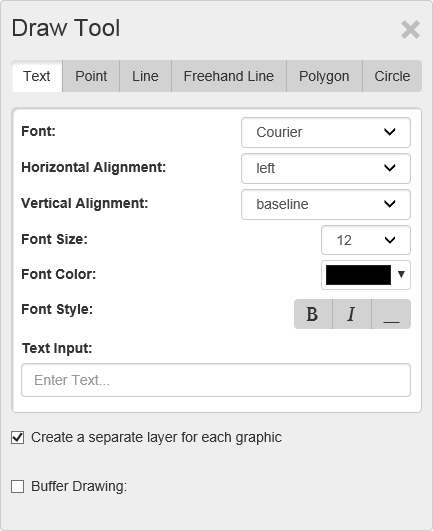
The Draw Tool window appears when you select Draw Tool from the Tools menu. It contains controls for adding points, lines, and shapes to a map.
Objects created using Draw Tools appear under Drawing layers on the Legend.
The Draw Tool window contains these tabs:
· Text - Click this tab to display Text controls, which are used to place text on the map.
Click here for a description of text controls.
· Point - Click this tab to display Point controls, which are used to indicate a single point on the map.
Click here for a description of point controls.
· Line - Click this tab to display Line controls, which are used to place straight lines, point to point, on the map.
Click here for a description of line controls.
· Freehand Line - Click this tab to display Point controls, which are used to drag freehand lines, including curves, on the map.
Click here for a description of freehand line controls.
· Polygon - Click this tab to display Point controls, which are used to place a multisided shape on the map.
Click here for a description of polygon controls.
· Circle - Click this tab to display Point controls, which are used to place a circle on the map.
Click here for a description of circle controls.
Use controls on the Text tab to place text on the map.
Font - Select the type of marker you want to use to indicate the point from this drop down list.
Font Size - Select the size of the marker from this drop down list.
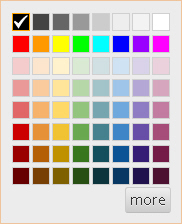
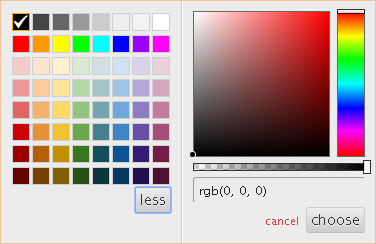
Font Color - Select the color of the marker using the Color Control.
Click here for a description of color controls.
Font Style - Select the style you want to apply to the text: Bold, Italic, or Underline.
Text Input - Enter the text that you want to place on the map.
Create a separate layer for each graphic - Select this checkbox to place each graphic as its own layer. Clear the checkbox to place all objects as a single layer.
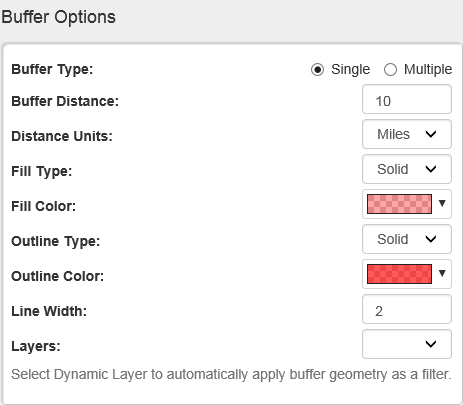
Buffer Drawing - Select this checkbox to display buffer controls for showing a given distance or distances around the selected feature. Click here to show buffer options.
Click here to return to the top of the page.
Use controls on the Point tab to indicate a single point on a map.
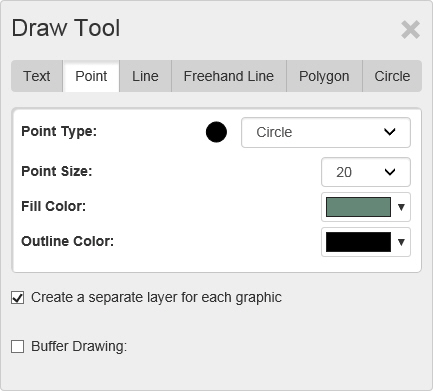
Point Type - Select the type of marker you want to use to indicate the point from this drop down list.
Point Size - Select the size of the marker from this drop down list.
Fill Color - Select the color of the marker using the Color Control.
Click here for a description of color controls.
Line Color - Select the outline color of the marker using the Color Control.
Click here for a description of color controls.
Create a separate layer for each graphic - Select this checkbox to place each graphic as its own layer. Clear the checkbox to place all objects as a single layer.
Buffer Drawing - Select this checkbox to display buffer controls for showing a given distance or distances around the selected feature. Click here to show buffer options.
Click here to return to the top of the page.
Use controls on the Line tab to draw straight lines on a map.
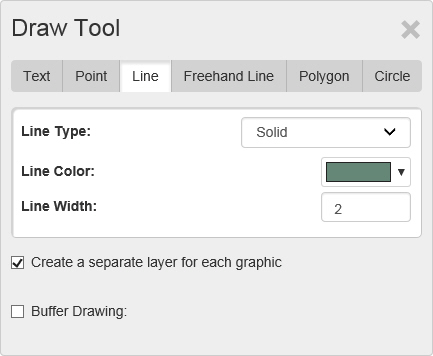
Line Type - Select the type of line (solid, dotted, and dashed options) you want to draw from this drop down list.
Fill Color - Select the color of the line using the Color Control.
Click here for a description of color controls.
Line Width - Enter the thickness of the line in points.
Create a separate layer for each graphic - Select this checkbox to place each graphic as its own layer. Clear the checkbox to place all objects as a single layer.
Buffer Drawing - Select this checkbox to display buffer controls for showing a given distance or distances around the selected feature. Click here to show buffer options.
Click here to return to the top of the page.
Use controls on the Freehand Line tab to draw curved lines on a map.
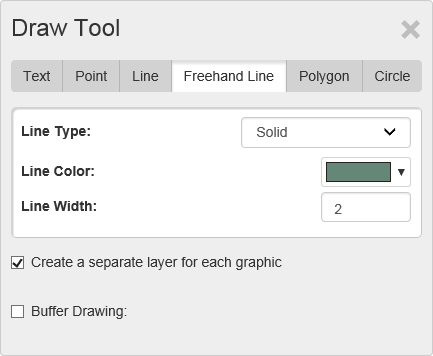
Line Type - Select the type of line (solid, dotted, and dashed options) you want to draw from this drop down list.
Fill Color - Select the color of the line using the Color Control.
Click here for a description of color controls.
Line Width - Enter the thickness of the line in points.
Create a separate layer for each graphic - Select this checkbox to place each graphic as its own layer. Clear the checkbox to place all objects as a single layer.
Buffer Drawing - Select this checkbox to display buffer controls for showing a given distance or distances around the selected feature. Click here to show buffer options.
Click here to return to the top of the page.
Use controls on the Polygon tab to draw a multi-sided area on a map.
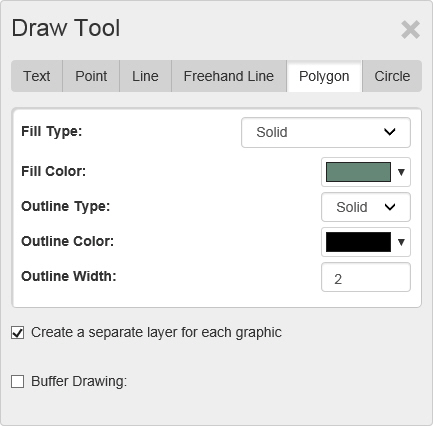
Fill Type - Select the type of fill, solid or pattern, for the polygon area.
Fill Color - Select the color of the polygon's fill using the Color Control.
Click here for a description of color controls.
Outline Type - Select the type of outline (solid, dotted, and dashed options) you want for the polygon.
Line Color - Select the color of the outline using the Color Control.
Click here for a description of color controls.
Line Width - Enter the thickness of the outline in points.
Create a separate layer for each graphic - Select this checkbox to place each graphic as its own layer. Clear the checkbox to place all objects as a single layer.
Buffer Drawing - Select this checkbox to display buffer controls for showing a given distance or distances around the selected feature. Click here to show buffer options.
Click here to return to the top of the page.
Use controls on the Circle tab to draw a circular area on a map.
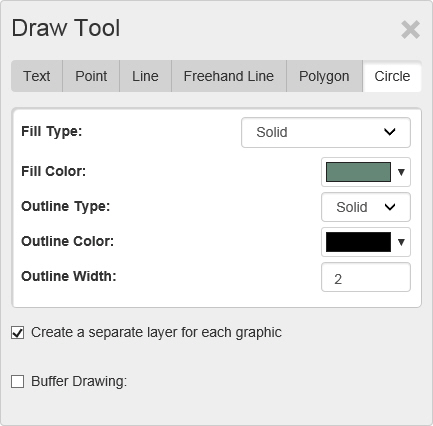
Polygon Type - Select the type of fill the circle will contain from this drop down list.
Fill Color - Select the color of the circle's fill using the Color Control.
Click here for a description of color controls.
Outline Type - Select the type of outline (solid, dotted, and dashed options) you want for the circle.
Line Color - Select the color of the outline using the Color Control.
Click here for a description of color controls.
Line Width - Enter the thickness of the outline in points.
Create a separate layer for each graphic - Select this checkbox to place each graphic as its own layer. Clear the checkbox to place all objects as a single layer.
Buffer Drawing - Select this checkbox to display buffer controls for showing a given distance or distances around the selected feature. Click here to show buffer options.
Click here to return to the top of the page.