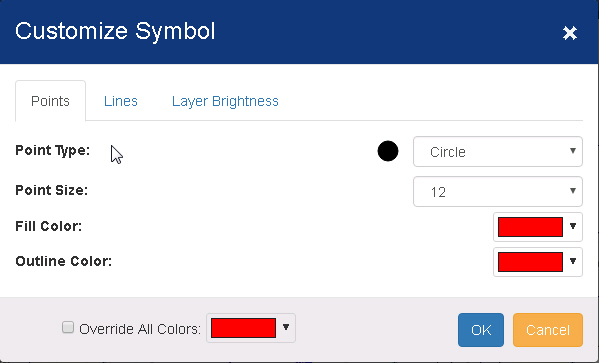
Use the Customize Symbol window to change the appearance of points, lines, and shapes in layers. Access the Customize Symbol tool by clicking the symbol on the map legend.
The Points tab appears for layers containing single points.
Point Type - Click this drop down list to select from a list of shapes to indicate a point.
Point Size - Click this drop down list to select the size of the shape used to indicate the point.
Fill Color - Click to select
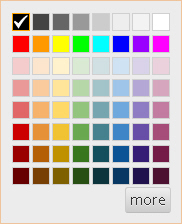
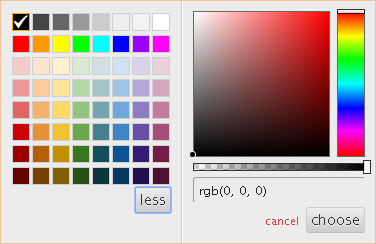
the color of the point shape using the Color Control.
Click here for a
description of color controls.
Outline Color - Click to select
the color of the point shape outline using the Color Control.
Click here for
a description of color controls.
Override All Colors - Use this to set all colors in the layer to be the same.
OK - Click to apply changes to the layer and close the Customize Symbol window.
Cancel - Click to close the Customize Symbol window without applying changes.
The Lines tab appears for layers containing lines.
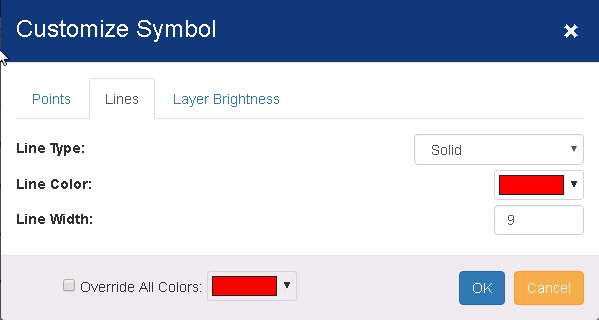
Line Type - Click this drop down list to select from a list of line types, including solid, dashed, and dotted options.
Line Color - Click to select
the color of the line using the Color Control.
Click here for
a description of color controls.
Line Width - Click this drop down list to select the thickness of the line.
Override All Colors - Use this to set all colors in the layer to be the same.
OK - Click to apply changes to the layer and close the Customize Symbol window.
Cancel - Click to close the Customize Symbol window without applying changes.
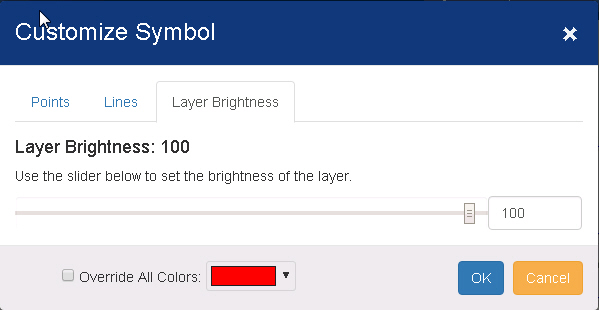
Layer Brightness
Use this setting to change how bright the colors are on the map.
The Polygons tab appears for layers containing shapes for an area.
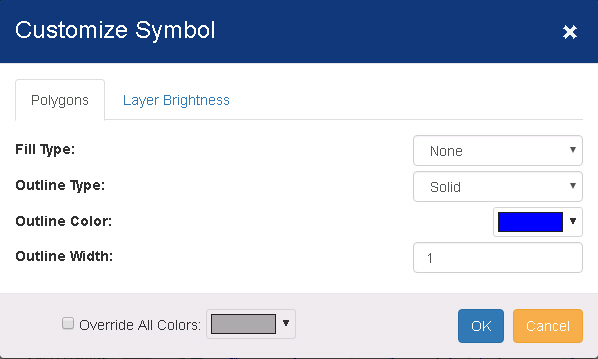
Polygon Type - Click to select a fill type, solid or pattern, for the polygon area. Options include:
· Solid (color fill)
· Backward Diagonal (pattern fill)
· Cross (pattern fill)
· Diagonal Cross (pattern fill)
· Forward Diagonal (pattern fill)
· Horizontal (pattern fill)
· Null (no fill)
· Vertical (pattern fill)
Fill Color - Click to select
the color of the polygon area using the Color Control.
Click here for
a description of color controls.
Outline Type - Click this drop down list to select from a list of outline types, including solid, dashed, and dotted options.
Line Color - Click to select
the color of the polygon's outline using the Color Control.
Click here for
a description of color controls.
Line Width - Click this drop down list to select the thickness of the polygon's outline.
Override All Colors - Use this to set all colors in the layer to be the same.