button in the header at the top of the page.
The Area Of Interest (AOI) Tool is the first thing that you see when PennDOT One Map loads. This tool is used to select the region or specific location that you would like to view, it can then filter any layers
added to the map by that selection. The AOI can also be opened by clicking
the Change Area Of Interest button in the header at the top of the page.
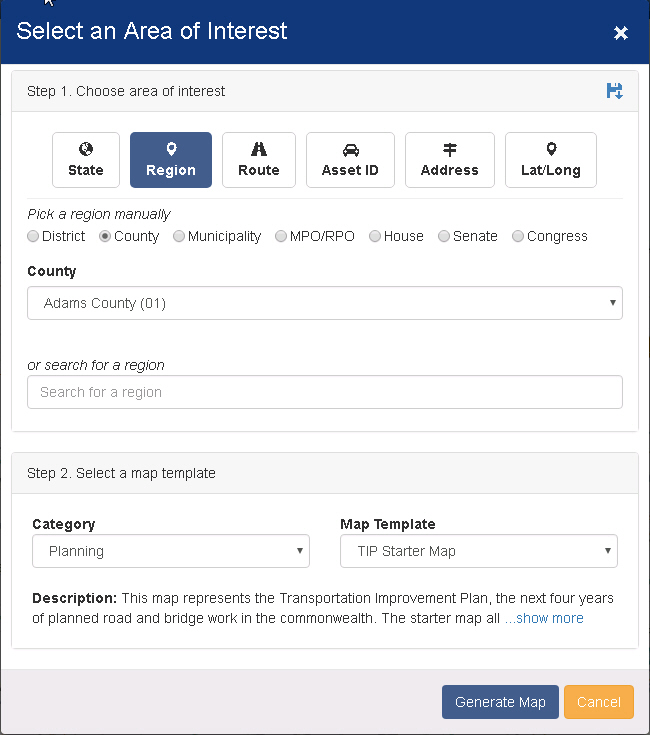
 Save selection as default - Click
this button to save the currently selected AOI as your default. This selection
will show by default when the AOI tool is loaded for the first time.
Save selection as default - Click
this button to save the currently selected AOI as your default. This selection
will show by default when the AOI tool is loaded for the first time.
Note that if you select a different AOI as you use PennDOT One Map, that selection will take precedence each time the tool is opened until you refresh the application.
Choose Area Of Interest (AOI) - There are six categories available to choose from. Each one allows you to find a location or region on the map by using different parameters. See below for detailed
instructions on each category.
Select A Map Template - There are several starter maps available to choose from containing commonly used data. The description gives a brief description of will be displayed. Choose one of these maps
to get started and you can always add or remove layers to it later. There is a blank <No Starter Map> option for those that want to build or load their own map.
Use Existing Map - If you re-open the AOI tool after a selection has already been made, you can change the selected AOI without changing the current map or removing the layers you have added.

Generate Map - This will close the AOI tool and display your selection on the map.
Cancel - Close the tool and return to the map.
The region category allows you to choose a spatial region on the map to filter your map layers.
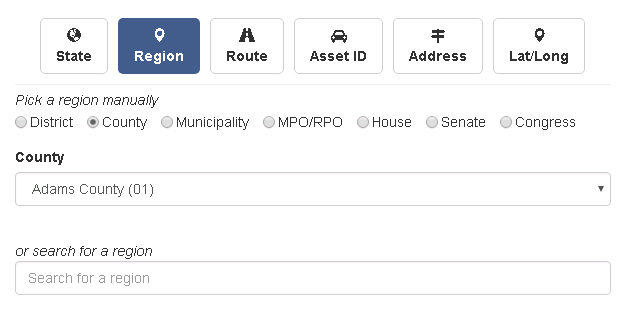
Pick Region - Choose from the available region types. Municipality is chosen by county then municipality.
Search For Region - Start typing the name of the region you are looking for if you don't know where it is located. Results will appear below if search is valid, select one.
Route
Route allows you to select a single route on the map.
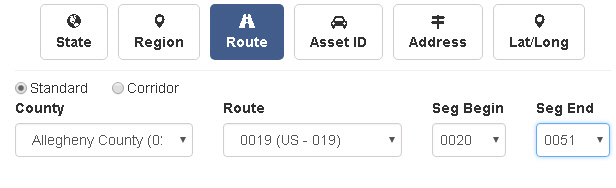
Standard - Route is contained within county limits.
Corridor - Route can span multiple counties. Can still select beginning and ending segments.
County - Choose the county the route is located in. County is required unless choosing corridor.
Route - Choose desired route by number. Route number is required.
Seg Begin - Choose the segment that you would like your selection to start at. Optional.
Seg End - Choose the segment that you would like your selection to finish at. Optional.
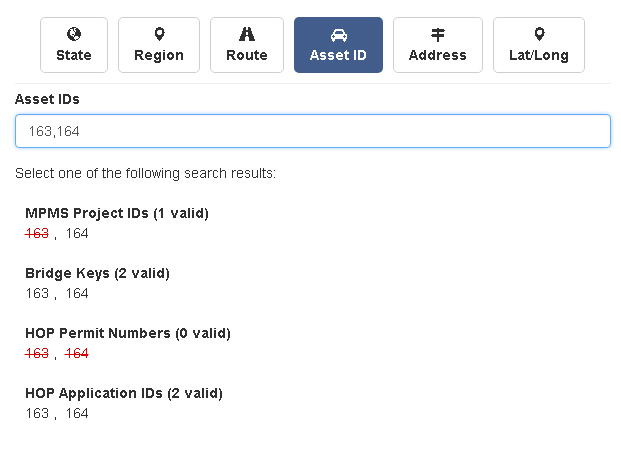
Asset ID
Asset ID allows you to search by specific Bridge Key, Project ID, HOP App ID or HOP Permit Number. You can enter multiple comma or space separated numbers.
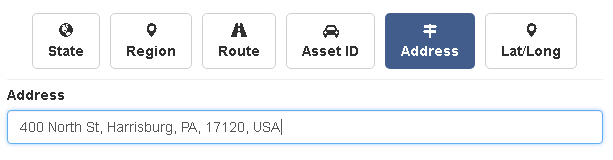
Address
Address lets you find a specific street address on the map. Start typing and suggestions will appear below to help.
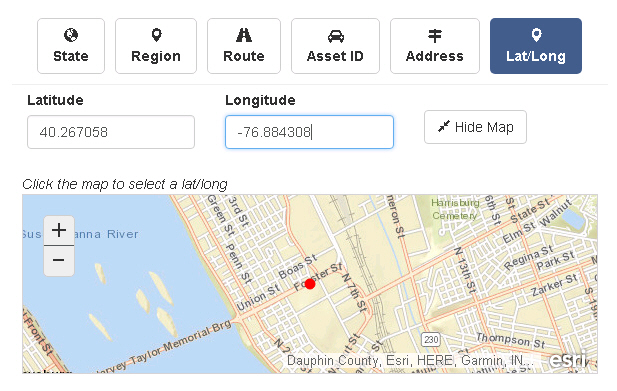
Lat/Long
Search by Latitude and Longitude to pinpoint a specific location on the map. You can also click on the embedded map to set Lat/Long values.
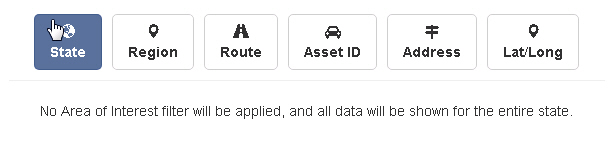
State
When you choose the state category, there are no location filters applied to the map. Any map or layers selected will be displayed statewide.