You can share a custom map you created with other users. An email link to the map will be sent to users you designate.
Note: Only maps appearing in the My Maps tab of the Maps window may be shared.
Other users will not be able to make changes to your map.
Tip: To unshare a map, open the My Maps tab of the Maps window and click  (Unshare Map) for the desired map.
If the map is currently on screen:
1. Click  under Legend.
2. Click  (Share Map).
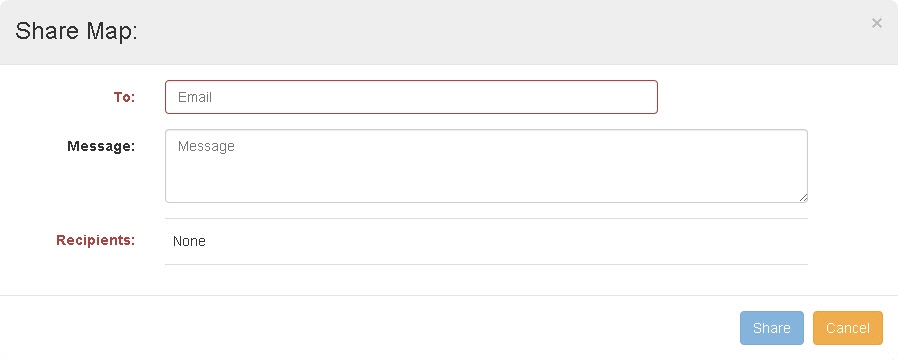
The Share Map pop up window appears.
3. Click Share for the desired map.
4. Enter email addresses of individuals you want to share the map with into the To field.
Tip: Once you start typing, the field lists possible email matches. You may select the desired address from the list instead of continuing to type.
Once added, recipients are shown in the Recipients section.
You may delete any recipient by clicking Remove.
5. Enter any text you want the email to contain into the Message field.
6. Click Share.
The system generates the email and sends it to the recipients.
If the map is not currently on screen:
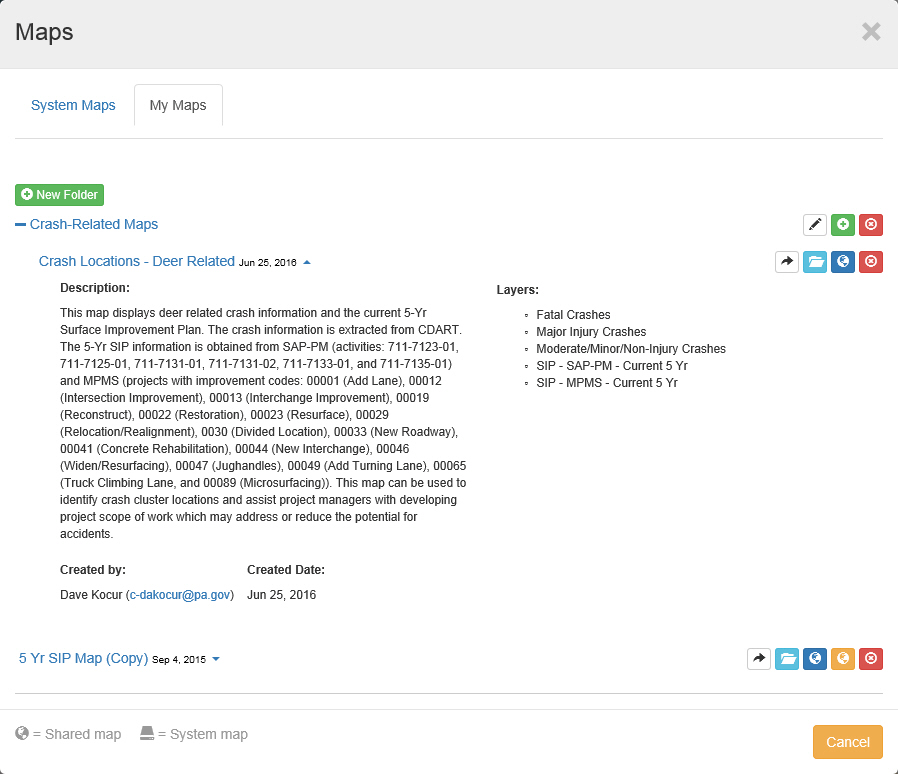
1. Click the Maps button.
The Maps pop up window appears.
2. Click  (Share Map) for the desired map.
The Share Map pop up window appears.
3. Enter email addresses of individuals you want to share the map with into the To field.
Tip: Once you start typing, the field lists possible email matches. You may select the desired address from the list instead of continuing to type.
Once added, recipients are shown in the Recipients section.
You may delete any recipient by clicking Remove.
4. Enter any text you want the email to contain into the Message field.
5. Click Share.
The system generates the email and sends it to the recipients.