Loading indicator in the map section

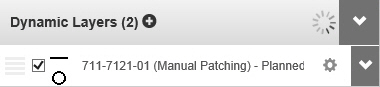
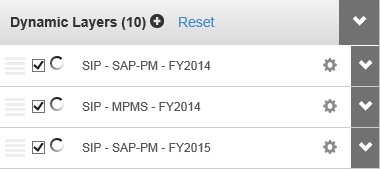
Spinners in the Legend section
You can open a pre-existing system map or a custom map that you have previously saved.
Tip: Response time
for larger data sets may be longer. To increase performance:
- Zoom in to a smaller area before adding the layer or map.
- Do not pan or change zoom level while a layer or map is loading.
Note: When
loading is completed, the loading indicator will disappear and the "spinners"
will stop.
Click
here for examples of loading indicators.
To open a map:
1. Click the
Maps button.
OR Click  under Legend and click
  (Maps).
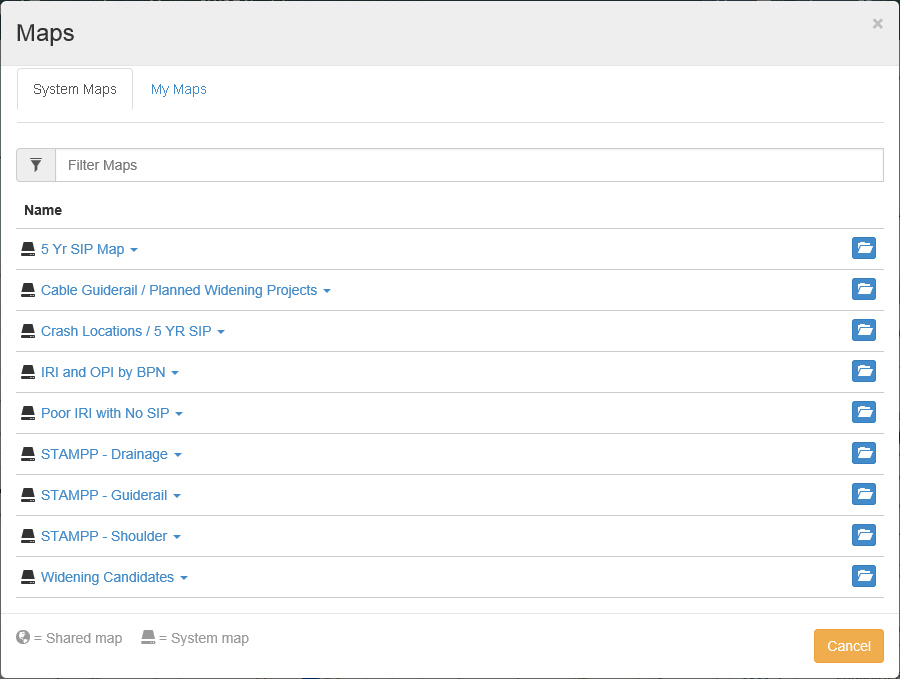
The Maps pop up
window appears. The "System Maps" tab is
displayed by default.
2. If desired, click the "My Maps" tab to display a list of standard maps.
3. Click  (Open Map) for
the desired map.
(Open Map) for
the desired map.
Note: If you selected a system map, the AOI Filter appears. Update filters, and click Apply.
Caution: If you select 'show all', the system may take a long time to generate the map.
4. The selected map opens.