for the layer you want to filter.
You can filter layer data to display only specific ranges of attributes or a geographic area.
To filter layer data:
1. Under TOC/Legend, click for the layer you want to filter.
2. Click  (Filter Layer).
3. Continue with the appropriate procedure below.
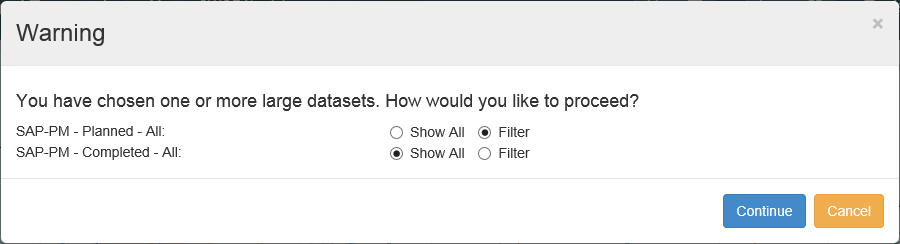
Note: The Filter Layer window also appears if you select Filter for one or more layers in the Warning window that appears for layers with large datasets.
Caution: Be aware of the following when using Global Conditions:
You may only set global condition for CTY_CODE (County Code) , DISTRICT_NO (District Number), and ST_RT_NO (State Route Number).
Refer to the FAQ Document available from the  Information Menu for additional guidance.
1 Click the Basic Query tab.
2 Add an attribute, operator, and condition.
3 (Optional) If you want to add another condition, click Add Condition, then:
· Select AND or OR from the drop down list.
AND finds results that match all of the criteria.
OR finds results that match any of the criteria.
· Add an attribute, operator, and condition.
4 Click Add Condition.
5 Add an attribute, operator, and condition.
6 (Optional) Continue adding conditions until you are ready to apply the filter.
7 Click OK.
The filter is applied to the layer.
1 Click the Geographic tab.
2 Select a Feature Type
3 Select the values to filter by.
Tip: You can select more than one value by holding down the Ctrl key while clicking the desired values.
4 Click OK.
The filter is applied to the layer.
Note: You may also click Select from Map and draw a polygon on the map. The filter will display only results within the polygon's boundary.
1 Click the Join tab.
2 Select a Roadway Characteristic from the drop down list.
3 Click Add Condition.
Note: After you click Add Condition, the drop down list is locked. You must remove any conditions before selecting another roadway characteristic.
4 Add an attribute, operator, and condition.
5 (Optional) If you want to add another condition, click Add Condition, then:
· Select AND or OR from the drop down list.
AND finds results that match all of the criteria.
OR finds results that match any of the criteria.
· Add an attribute, operator, and condition.
6 Click OK.
The filter is applied to the layer.